Overview
Gearbox allows you to track permits and their expiry dates for vehicles within your Gearbox fleet.
The Compliance module must be active in your Gearbox subscription.
Adding New Permit Type
1. Click on your User Icon (1) then click on Settings (2)
2. On the left hand side of your screen scroll down and click on Permit Types (3)
3. Click on Add New Type (4)
4. Enter in the Permit Type Label (5) then click Save (6)
5. The new permit type will now appear below (7)
Adding Permits
1. Click on Compliance (1) and then Permits (2)
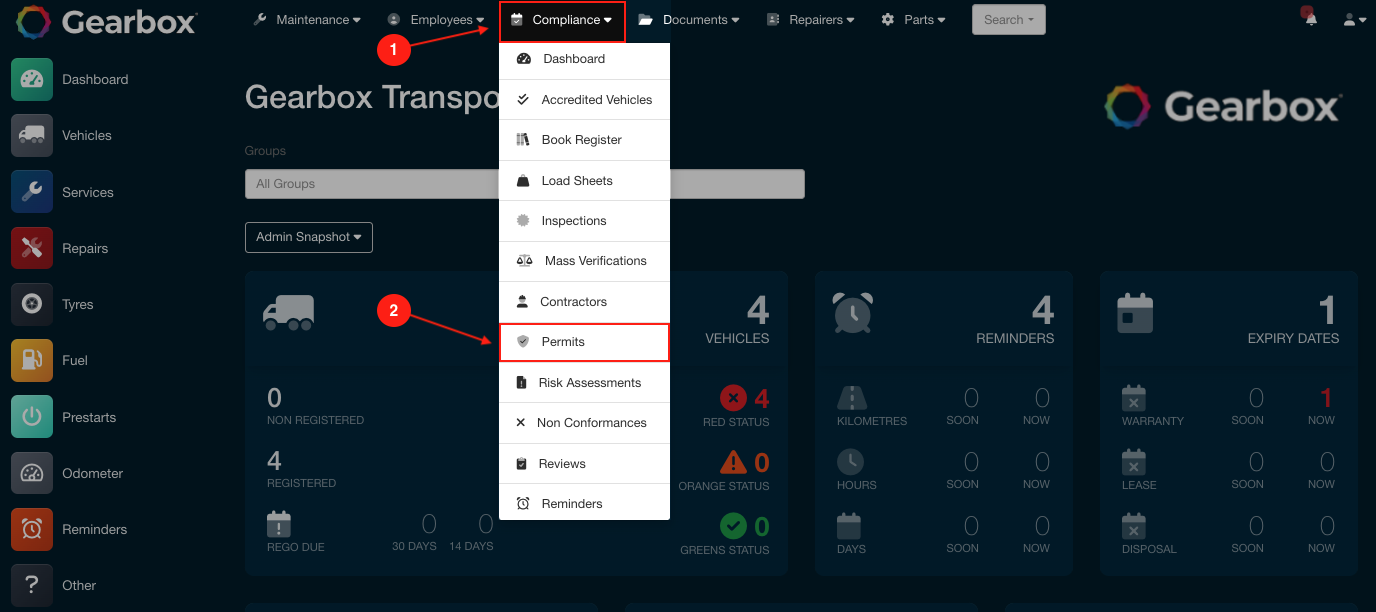 Adding Permits - Admin Dashboard
2. Click on Add New (3) to create a new Permit record. To edit a record click on an existing record (4)
3. Select a Vehicle (5), select a Type (6) of permit, enter in a Supplier (7), Permit Date (8) enter in the Permit Expiry Date (9) click Save (10) then click Save and Close (11)
Comments
0 comments
Article is closed for comments.