Overview
Gearbox enables you to create and manage your users, with each user type capable of having various User Permission Levels classified by a license, each associated with different cost rates. For further details on the different user types in Gearbox, please consult our Gearbox Pricing.
Edit Gearbox Users
1. Click on the User Icon (1), then click on Users (2).
2. The Admin Dashboard will be displayed which is a summary of your current subscription including active modules, total users and costs. Click on Users (3) or Active Users (3) to view your current users. (Both will take you to the same page) .
3. The Active Users page will be displayed to view All Active, Read & Write, Read Only, and Inactive users (4) and Add New (5) users within your system. To edit a current user, click on their Username (6). This will then open up their user information
4. This will open up your User Information, from here you will be able to edit a current user.
Adding New Gearbox Users
1. Following on from Active Users (3) to create a new user, click Add New (4).
2. Fill in the user information (5-8), then select the user type (9) User Permission Levels
3. Select Group Filters (10) if you wish to limit access and visibility to specific Groups and Subgroups. When options have been locked, the user will not be able to alter their Group/Subgroups.
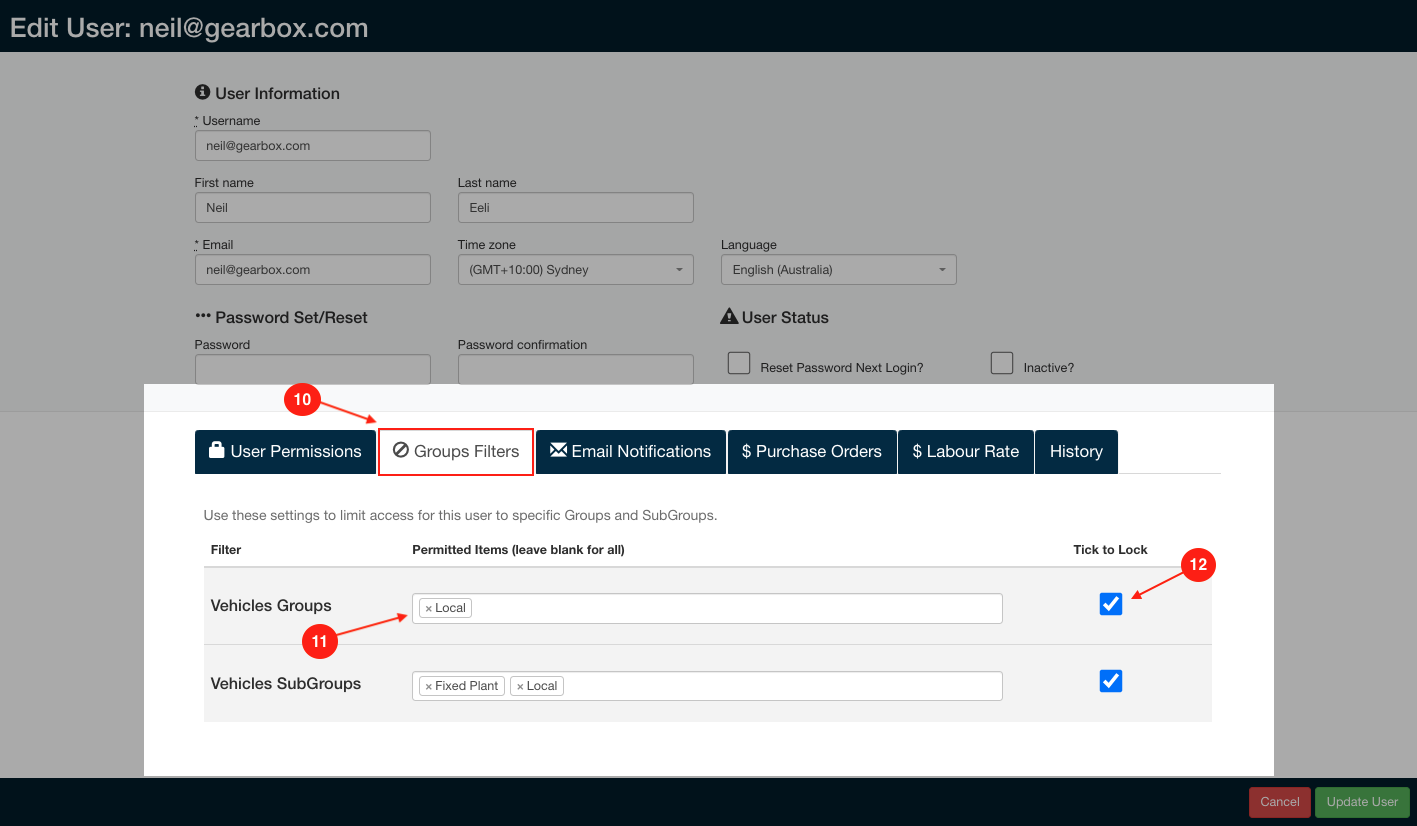 Adding New Gearbox Users - Group Filters
4. Click on Email Notifications (13). From here, you can choose the days (14) for the user to receive the Daily Snapshot Daily Snapshot Email. Gearbox allows you to filter Vehicle Groups & Vehicles Subgroups (15), enabling you to receive emails whenever a Prestart Application is triggered (16).
If you leave Groups and Subgroups blank, you will receive emails for all sections in Gearbox. Similarly, leaving Prestart application notifications blank will result in no notifications being received.
5. Navigate to the Purchase Orders tab (17) to configure Purchase Order Limitations for the user. For instance:
- 'This user can approve Purchase Orders up to: ($)' - You can set an approval limitation. In the screenshot below, the user can only approve Purchase Orders up to $500.00. Leaving this blank removes the limitation, allowing the user to approve all Purchase Orders (18).
- 'This user can export Purchase Orders with a variation of up to (0-100%)' - You can set a variation amount as a percentage. In the screenshot below, the user can only export Purchase Orders with a 50% variation of the original cost. Leaving this blank removes the variation limit (19).
6. When you click on the Labour Rate and input the Hourly Charge Out Rate, you're essentially inputting the user's charge-out rate. We recommend against entering actual wages in this field, as doing so will make them visible to other users within Gearbox.
Comments
0 comments
Article is closed for comments.